Easydict for Windows
Easy to look up words or translate text
A Windows port of Easydict
Table of Contents
Introduction
This is a Windows port of Easydict, originally a macOS translation dictionary app. The project was developed using Vibe Coding - AI-assisted programming to migrate the Swift/SwiftUI codebase to .NET + WinUI 3.
Easydict supports Copilot+ PC enhanced local AI translation: on supported Copilot+ PCs with a 40+ TOPS NPU, translations run on-device via Phi Silica for fast, private output. Foundry Local is supported on regular Windows PCs, with OpenVINO NLLB-200 as an offline fallback — standard translation services remain fully available on every Windows device.
While the feature set is not yet complete compared to the macOS version, this port fills the gap for Windows users who want a convenient translation tool with global hotkey support and multiple translation services.
Back to Top
Screenshots
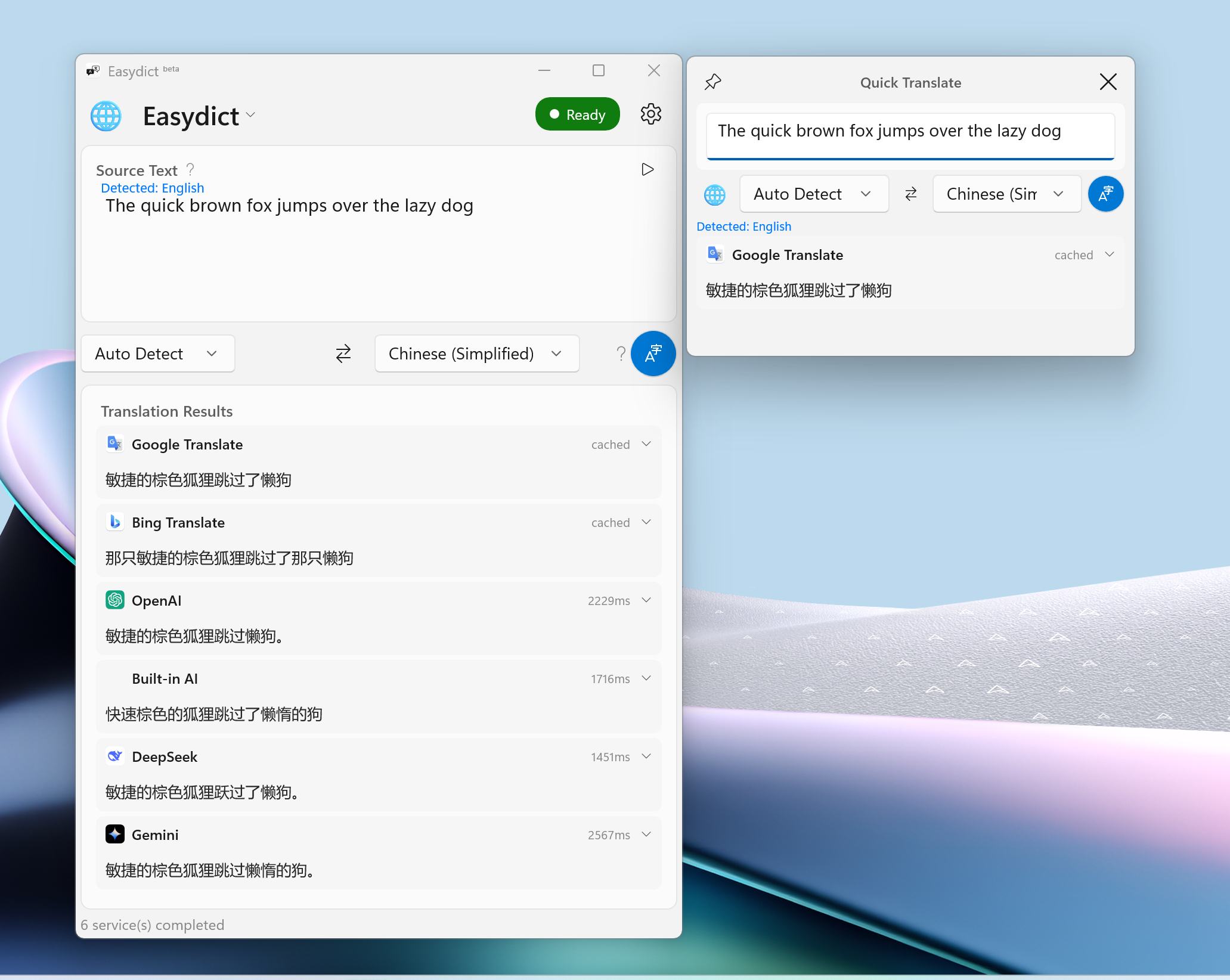
Main Window with Mini Window (Quick Translate)
| Main Window | All Windows | Settings |
|---|
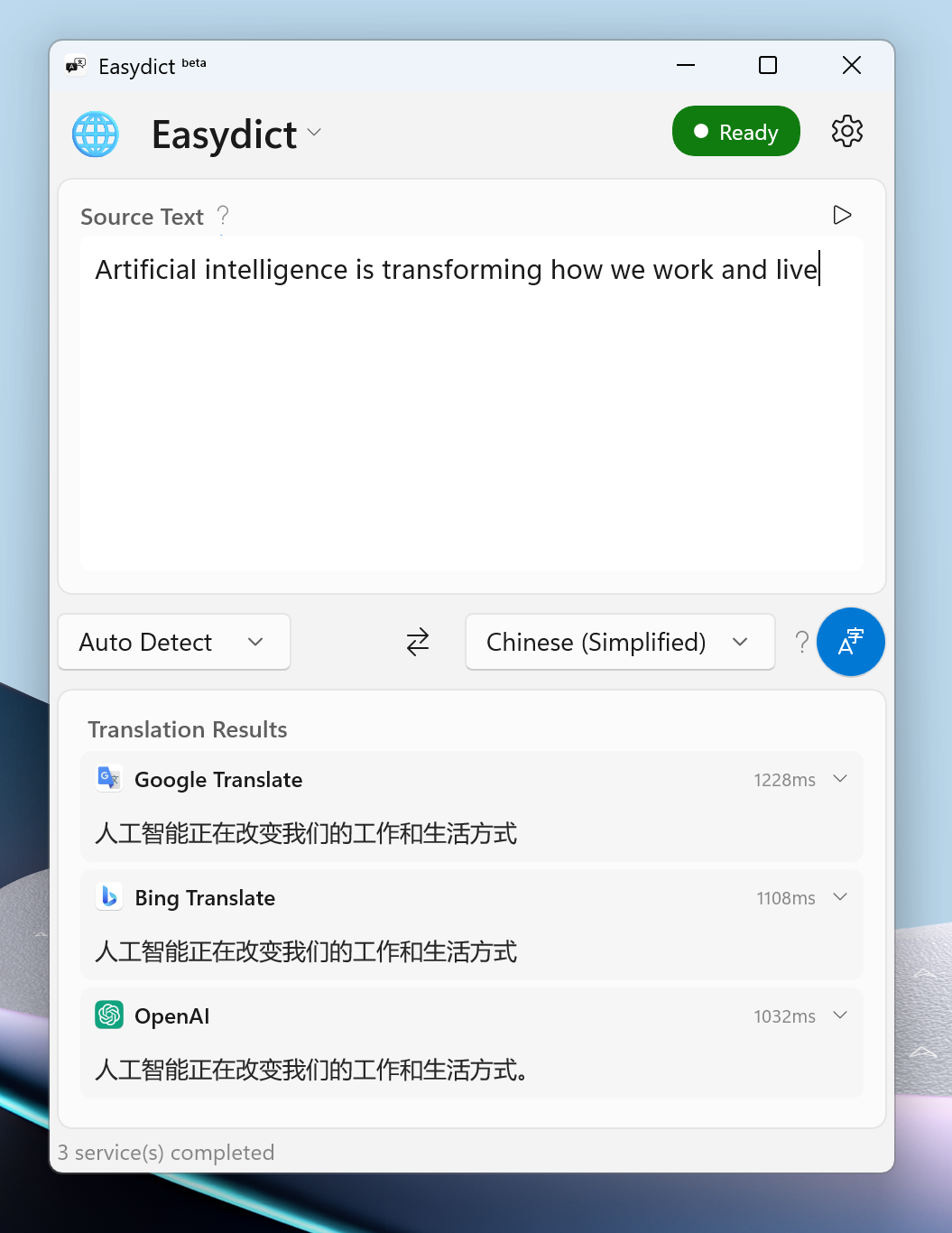 | 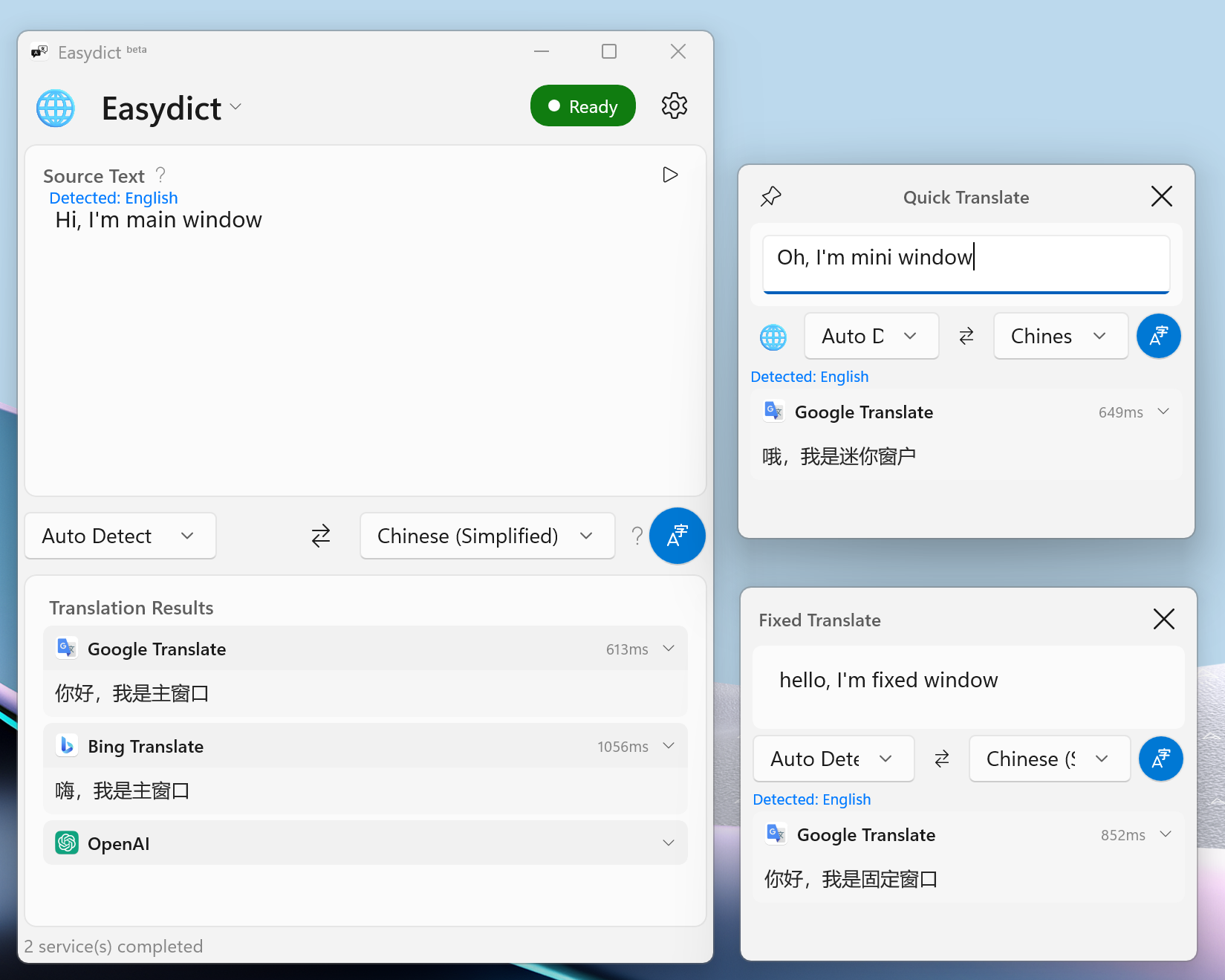 | 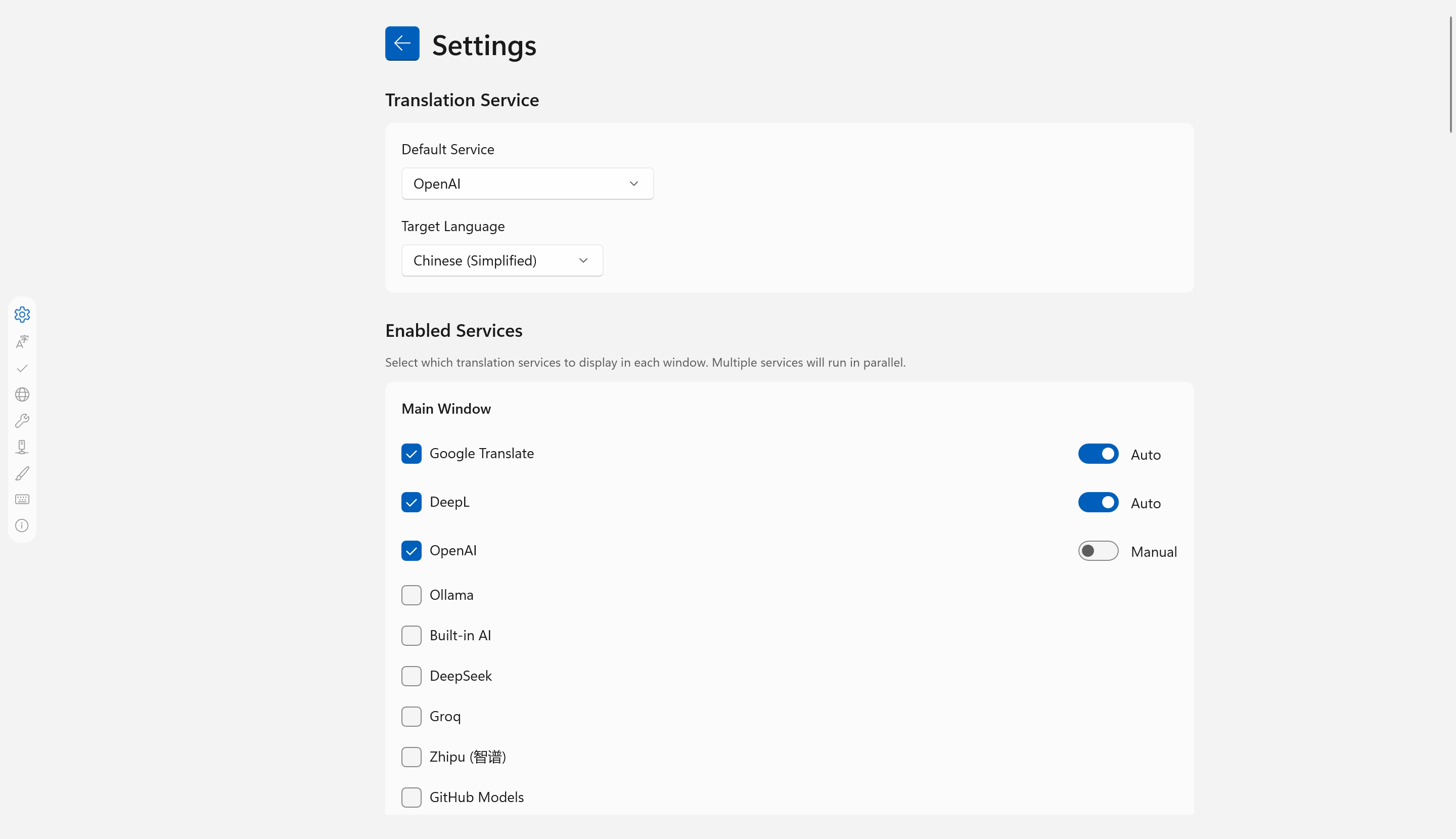 |
| Full translation interface | Main + Mini + Fixed windows with hotkey settings | Service configuration |
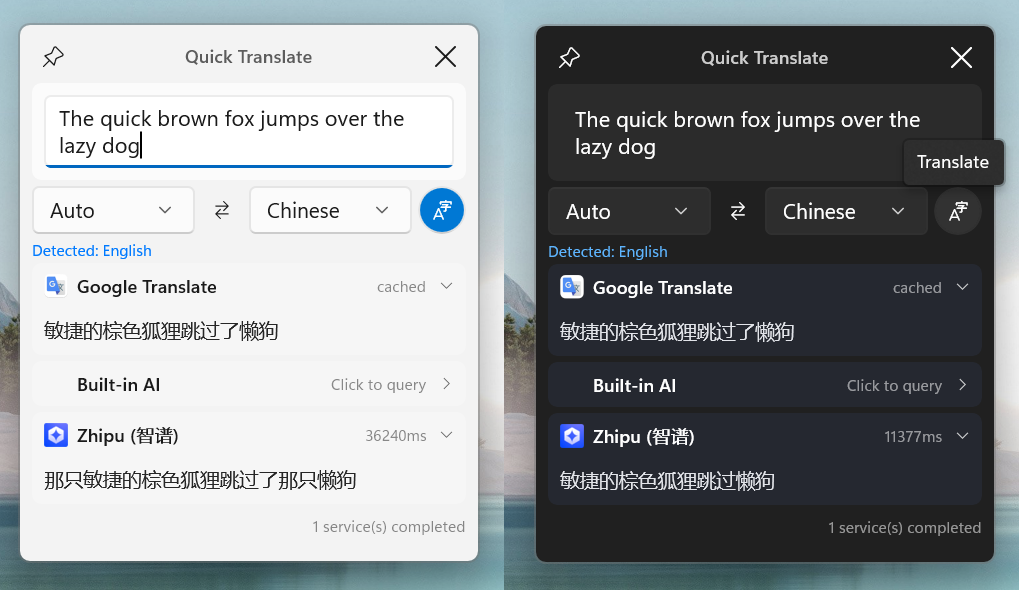
Light & Dark Mode — Mini Window (Quick Translate)
| Grammar Correction | Dictionary Mode | Long Document Translation |
|---|
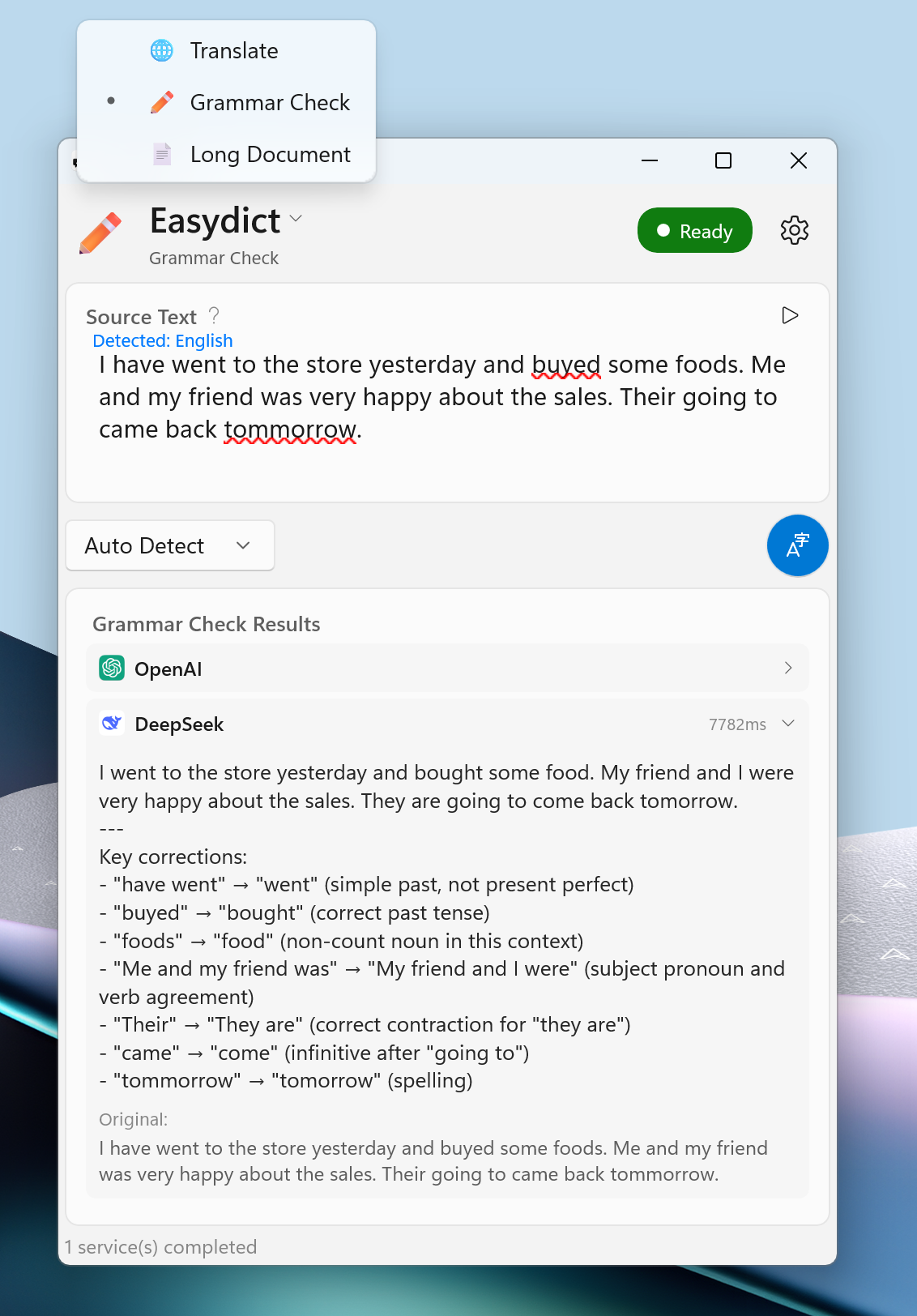 | 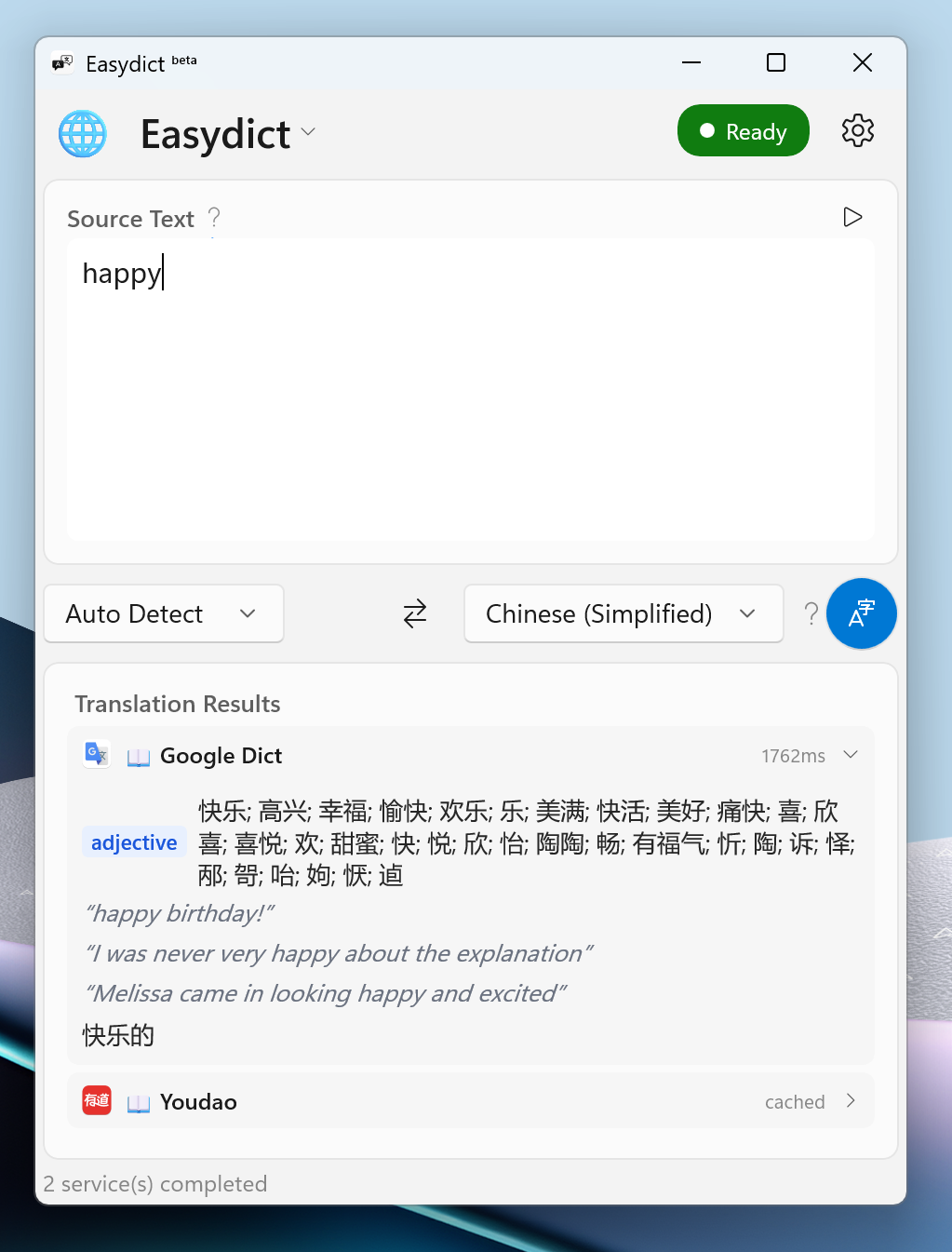 | 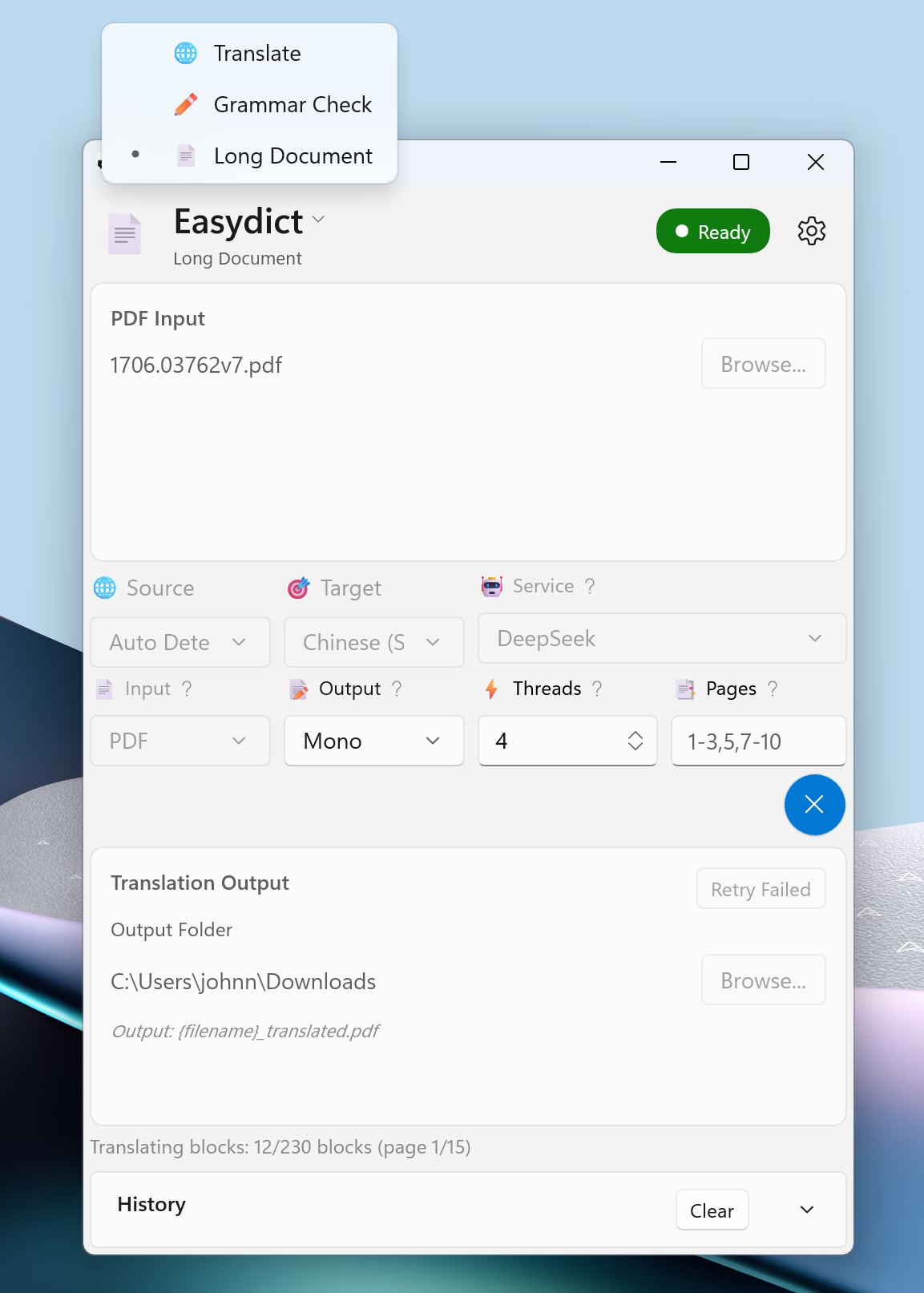 |
| AI-powered grammar correction | Word definitions, phonetics, and examples | PDF/Text/Markdown translation with progress |
| OCR Screenshot Translate | Mouse Selection Translate |
|---|
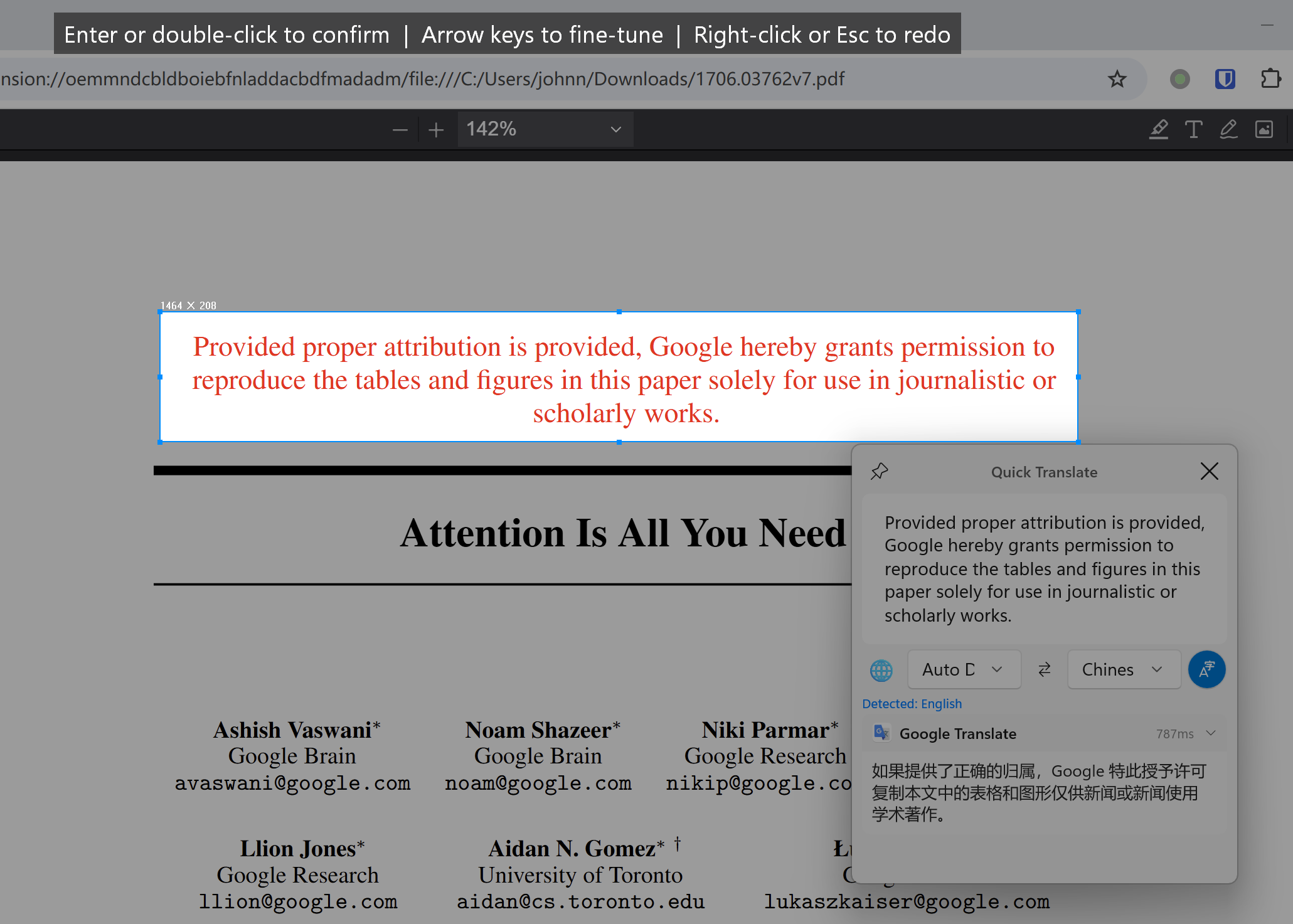 | 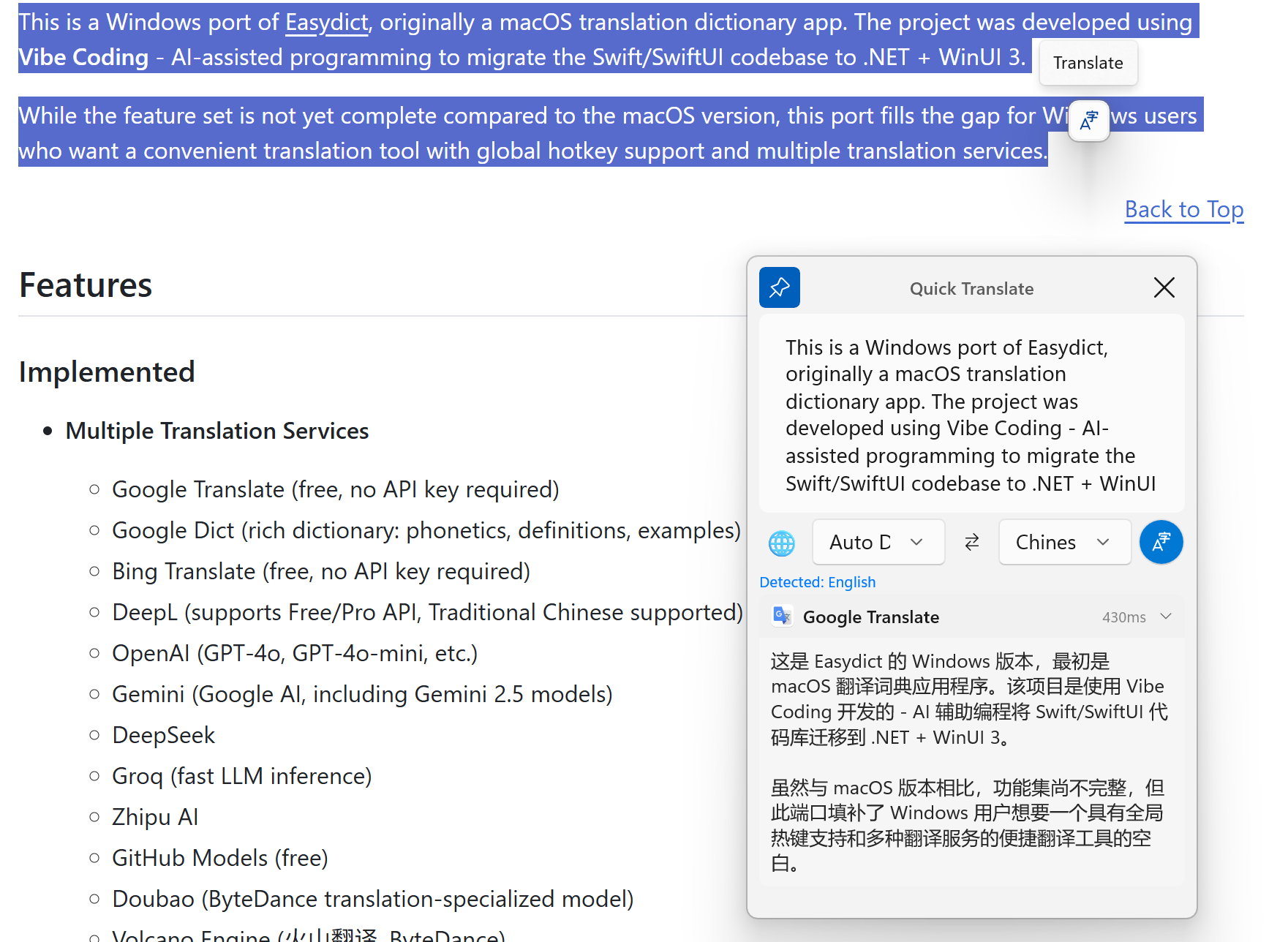 |
| Capture screen region → OCR → translate | Select text in any app → click to translate |
Back to Top
Features
-
Copilot+ PC Enhanced Local AI Translation - Windows Local AI runs on-device with NPU acceleration via Phi Silica on supported Copilot+ PCs (40+ TOPS), Foundry Local on regular Windows PCs, or OpenVINO NLLB-200 as an offline fallback. Auto mode picks the best available provider; standard cloud translation services remain fully available everywhere.
-
OCR Screenshot Translate - Snipaste-style screen capture: press Ctrl+Alt+S to capture a screen region, auto-detect windows or drag to select, then OCR the text and translate. Uses Windows OCR API with configurable recognition language. Also supports silent OCR (Ctrl+Alt+Shift+S) that copies recognized text to clipboard without translating.
-
Mouse Selection Translate - Select text in any app (drag, double-click, or triple-click) and click the floating pop button to translate instantly in Mini Window. The pop-up is a strip: next to the translate icon it shows your configured text actions
-
Text Actions - Run the selected or entered text through one specific service, or send it to Google, Bing, GitHub, Wikipedia, Baidu or your own URL template. Available from the Actions menu in every window. Selection search buttons are off by default and can be enabled under Settings → Plugins → Text Actions. Clicking a service icon queries only that service and grays out the others.
-
Bob Plugin Compatibility - Install .bobplugin translation plugins from the Bob ecosystem and use them as translation services. Plugins run in an embedded JavaScript engine with manual queries and optional caching and retries. Each installed plugin gets a selection button, configurable from the Plugins page. Ordinary translation leaves plugin services inactive and grayed out. Plugin results always carry a "Bob plugin" badge.
-
Labs - New features start in Settings → Labs and move to the main settings tabs once stable. Custom dictionary input suggestions remain in General.
-
Hover Word Lookup - Disabled by default; enable it from the tray menu or Settings → Labs. Hold Ctrl for at least 50 ms (configurable key, or no key at all) and rest the pointer on any word to see a small popup with the word, its phonetics and meaning. Reads text via UI Automation with an OCR fallback for apps that expose no text. Tries the preferred lookup service first, then falls back through enabled services if a request fails, times out or returns no meaning
- Expand Advanced settings under Hover Word Lookup to adjust the hover delay (10–600 ms, default 350 ms), lookup service, and OCR fallback. Save to apply. The delay controls pointer dwell before lookup starts; extraction and translation take additional time. Hover lookup works independently of the excluded-app list for mouse selection translation.
-
Grammar Correction Mode - AI-powered grammar correction that highlights errors and provides corrected text with explanations
-
Long Document Translation - Translate PDF, plain text, and Markdown documents with ML-based layout detection, formula protection, parallel processing, bilingual output, and translation cache
-
Dictionary Mode - Word definitions, phonetics, and example sentences powered by Google Dict. Linguee is currently unavailable because its upstream sample API no longer resolves.
-
MDX Dictionary - Import MDict (.mdx) dictionary files for offline word lookups with rich HTML rendering
-
Global Hotkeys
Ctrl+Alt+T - Show/hide main windowCtrl+Alt+D - Translate clipboard contentCtrl+Alt+M - Show/hide mini window (copies selection and translates when available)Ctrl+Alt+F - Show/hide fixed windowCtrl+Alt+S - OCR screenshot translateCtrl+Alt+Shift+S - Silent OCR (copy recognized text to clipboard)Ctrl+Alt+Shift+M - Toggle mini window visibilityCtrl+Alt+Shift+F - Toggle fixed window visibility
-
Multiple Window Modes
- Main Window - Full translation interface
- Mini Window - Compact floating window
- Fixed Window - Persistent translation window
-
LLM Streaming Translation - Real-time display of translation results
-
System Tray - Minimize to tray, run in background
-
Clipboard Monitoring - Auto-translate copied text
-
Shell Context Menu - Right-click any file or desktop background → "OCR Translate" to instantly capture and translate text on screen
-
Dark/Light Theme - Follows system theme
-
TTS (Text-to-Speech) - Play source and translated text using Windows Speech Synthesis
-
Multi-language UI - Localized interface in 15 languages including English, Chinese (Simplified/Traditional), Japanese, Korean, French, German, Spanish, Portuguese, Italian, Russian, Arabic, Thai, Vietnamese, and Indonesian
-
40+ Languages - Customizable language selection in Settings — choose which languages appear in source/target pickers from 40+ options spanning East Asian, European, Middle Eastern, South Asian, and Southeast Asian languages
-
HTTP Proxy Support - Configure proxy server
-
High DPI Support - Per-Monitor V2 DPI awareness
-
Multiple Translation Services (23 available services; Linguee currently unavailable)
- Google Translate (free, no API key required)
- Google Dict (rich dictionary: phonetics, definitions, examples)
- Bing Translate (free, no API key required)
- DeepL (supports Free/Pro API, Traditional Chinese supported)
- Youdao (Web + OpenAPI)
- OpenAI (GPT-4o, GPT-4o-mini, etc.)
- Gemini (Google AI, including Gemini 2.5 models)
- DeepSeek
- Groq (fast LLM inference)
- Zhipu AI (GLM models)
- Kimi (Moonshot AI)
- GitHub Models (free)
- Doubao (ByteDance translation-specialized model)
- Volcano Engine (火山翻译, ByteDance)
- Caiyun (彩云小译, Traditional Chinese supported)
- NiuTrans (小牛翻译, 450+ languages, Traditional Chinese supported)
- Linguee Dictionary (currently unavailable; upstream sample API is offline and disabled by default)
- Ollama (local LLM, default: llama3.2)
- Windows Local AI (Phi Silica on Copilot+ PCs, OpenVINO fallback)
- OpenRouter (unified gateway to 400+ models, free models available)
- OrcaRouter (OpenAI-compatible gateway at
https://api.orcarouter.ai/v1, free models available; one-click Sign in with OrcaRouter obtains an API key via PKCE without leaving the app) 
- Custom OpenAI-compatible services
- Claude Code (local agent CLI, uses your Claude subscription — no API key)
- Codex (local agent CLI, uses your ChatGPT subscription — no API key)
Back to Top
Installation
System Requirements
- Windows 10 version 2004 (build 19041) or later
- x64 or ARM64 processor
Install via winget
winget install xiaocang.EasydictforWindows
Download
Download from the Releases page.
Portable Version (Recommended)
File: easydict_win32-vX.Y.Z-x64.zip
- No installation required - extract and run
- No administrator privileges needed
- Self-contained (.NET runtime included)
- First run may trigger Windows SmartScreen warning - click "More info" → "Run anyway"
# Extract and run
Expand-Archive easydict_win32-v1.0.0-x64.zip -DestinationPath Easydict
.\Easydict\Easydict.WinUI.exe
Verify Download (Optional)
Each release includes SHA256 checksums for verification.
# Linux/macOS/WSL
sha256sum -c checksums-x64.sha256 --ignore-missing

# PowerShell
$expected = (Get-Content checksums-x64.sha256 | Select-String "easydict_win32").ToString().Split()[0]
$actual = (Get-FileHash easydict_win32-v1.0.0-x64.zip -Algorithm SHA256).Hash.ToLower()
if ($expected -eq $actual) { "OK" } else { "FAILED" }
Build from Source
# Clone repository
git clone https://github.com/xiaocang/easydict_win32.git
cd easydict_win32/dotnet

# Build
dotnet build src/Easydict.WinUI/Easydict.WinUI.csproj -c Release

# Run
dotnet run --project src/Easydict.WinUI/Easydict.WinUI.csproj
Back to Top
Tech Stack
- .NET - Runtime framework
- WinUI 3 (Windows App SDK) - Modern Windows UI framework
- C# - Programming language
- xUnit + FluentAssertions - Unit testing
Back to Top
Translation Service Integration Tests
| Service | Protocol | Status | Notes |
|---|
| Google Translate | REST | ✅ | Free, no API key |
| Bing Translate | REST | ✅ | Free, no API key |
| Youdao | REST | ✅ | Web + OpenAPI |
| OpenAI | OpenAI API | ✅ | |
| DeepSeek | OpenAI API | ✅ | |
| Gemini | Gemini API | ✅ | Custom SSE streaming |
| Zhipu AI | OpenAI API | — | Temporarily skipped: no API key configured |
| Kimi | OpenAI API | — | OpenAI-compatible (Moonshot AI), missing API key |
| Volcano Engine | REST | ✅ | HMAC-SHA256 signing |
| Groq | OpenAI API | ✅ | OpenAI-compatible |
| GitHub Models | OpenAI API | — | OpenAI-compatible, missing API key |
| Doubao | Custom SSE | — | Missing API key |
| DeepL | REST | ✅ | Free/Pro API |
| Caiyun | REST | — | Missing API key |
| NiuTrans | REST | ✅ | |
| Linguee | REST | — | Unavailable: upstream sample API domain no longer resolves; integration tests are skipped by default |
| Google Dict | REST | ✅ | |
| Ollama | OpenAI API | — | Requires local Ollama setup |
| Windows Local AI | Local runtime | ✅ | TranslationManager routing tested; real inference requires Phi Silica, Foundry Local, or OpenVINO model |
| OpenRouter | OpenAI API | — | OpenAI-compatible, missing API key |
| OrcaRouter | OpenAI API | ✅ | Integration coverage: streaming translation, non-streaming translation, and live model catalog (free models first) |
| Custom OpenAI | OpenAI API | — | OpenAI-compatible, user-defined endpoint |
| Claude Code | Local CLI (stream-json) | — | Requires local claude CLI signed in |
| Codex | Local CLI (JSONL) | — | Requires local codex CLI signed in |
> Services marked OpenAI API extend BaseOpenAIService and share the same OpenAI-compatible implementation, so untested ones are expected to work similarly.
Back to Top
Support the Project
If Easydict for Windows is useful to you, please give the repository a star on GitHub. Your support helps more people discover the project and motivates its continued development.
Back to Top
Comparison with macOS Version
| Feature | macOS | Windows |
|---|
| Translation Services | 25+ | 20 |
| OCR Screenshot Translation | Yes | Yes |
| TTS | Yes | Yes |
| Selection Translation | Yes | Yes |
| Hover Word Lookup | No | Yes (disabled by default) |
| Grammar Correction | No | Yes |
| Long Document Translation | No | Yes |
| Dictionary Mode | Yes | Yes |
| Window Types | 3 | 3 |
| Global Hotkeys | 10+ | 8 |
| LLM Streaming | Yes | Yes |
| Traditional Chinese | Yes | Yes |
Back to Top
Comparison with pdf2zh
pdf2zh (PDFMathTranslate) is a popular open-source PDF translation tool focused on scientific papers. The table below compares the long document translation capabilities of the two.
| Feature | pdf2zh | Easydict Win32 |
|---|
| Layout Detection | DocLayout-YOLO | ONNX (DocLayout-YOLO) / Vision LLM / Heuristic / Auto |
| Formula Protection | LaTeX preservation | Three-tier detection, multi-font glyph rendering, subscript/superscript handling |
| LLM Backends | OpenAI, Ollama, Azure OpenAI, etc. | OpenAI, Gemini, DeepSeek, Groq, Zhipu, Kimi, GitHub Models, Doubao, Ollama, Custom OpenAI-compatible |
| Document Context Pass | No | Yes — glossary + summary + preservation hints extracted before block translation for terminology consistency |
| Translation Cache | No | Yes — SQLite cache keyed by source hash + service + language pair |
| Parallel Translation | Limited | Configurable concurrency with retry + quality feedback |
| OCR Fallback (Scanned PDF) | No | Yes — Windows OCR for image-only pages |
| CJK Font Handling | Basic | Built-in CJK font resolver + TrueType CMAP parser + automatic font download |
| Page Range Selection | Yes | Yes (1-3,5,7-10 or all) |
| UI | CLI + minimal GUI | Native WinUI 3 app with progress, preview, cancellation |
| Integration | Standalone | Part of full translation dictionary app (OCR, selection, hotkeys, streaming, etc.) |
| Platform | Cross-platform (Python) | Windows 10/11 (native .NET 8) |
Back to Top
License
GPL-3.0 - For learning and communication purposes only. License and copyright notice must be included when using source code.
Back to Top
Acknowledgements
This project was developed using Vibe Coding, with AI-assisted programming by Claude (Anthropic).





