TL;DR — an app store for Windows, on top of winget. Get it with:
winget install appcenter
App Center
Ubuntu's App Center, rebuilt for Windows on top of winget. WPF on .NET 10,
and one external package — SharpVectors, to draw the SVG icons WPF cannot.
Free software under the GPL-3.0, the same licence Canonical give
Ubuntu's App Center — see
Licence and origins.
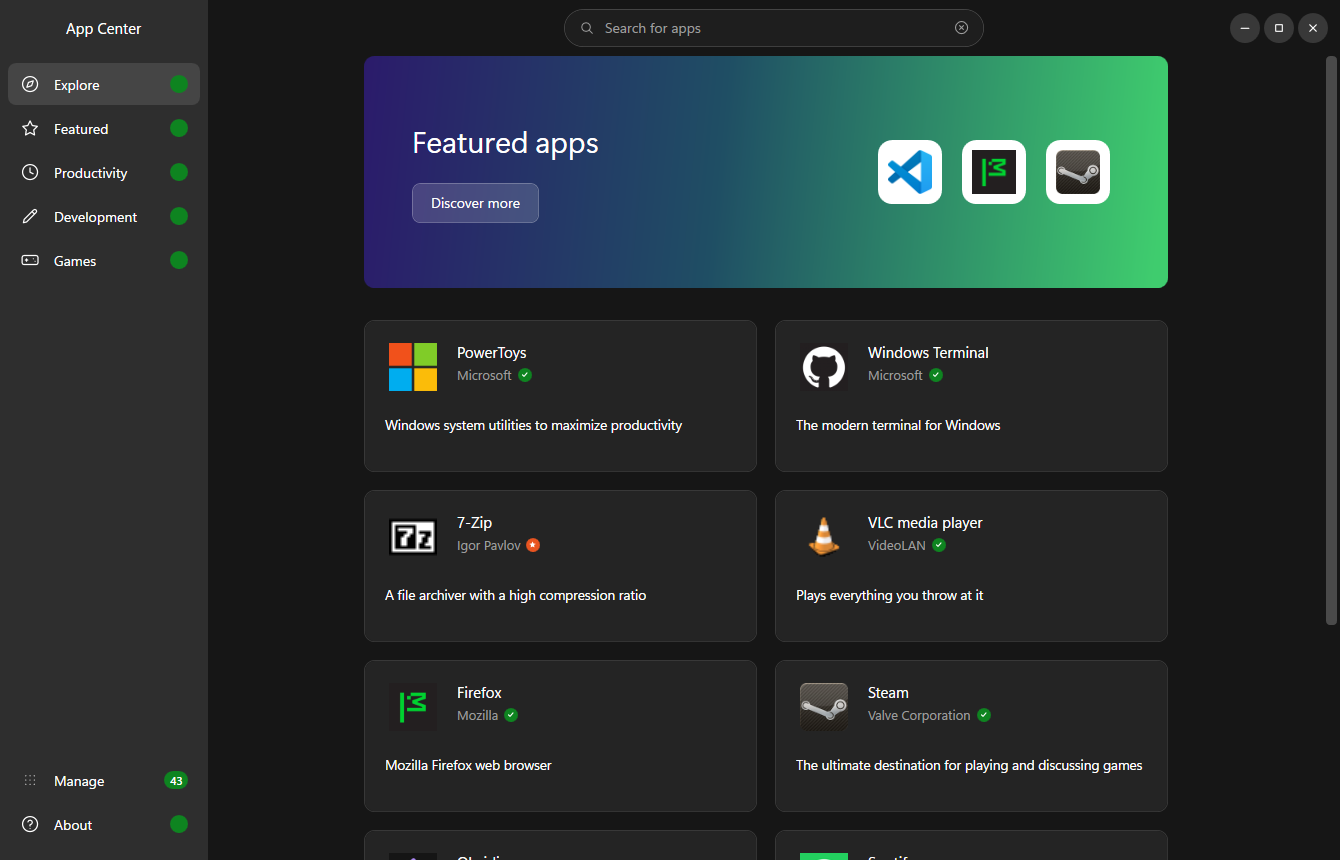
Running it
dotnet run --project AppCenter.csproj
Or build once and launch the exe:
dotnet build -c Release
bin\Release\net10.0-windows\AppCenter.exe
Requires the Windows Package Manager (winget). It ships with App Installer on
Windows 11; if winget --version fails, install App Installer from the
Microsoft Store. The About page reports whether it was found.
Releasing
deploy.bat            builds the version in AppCenter.csproj
deploy.bat 1.1.0      builds that version instead
Everything lands in releases\:
| |
|---|
AppCenter--Setup.exe | Inno Setup installer, per-user, no UAC |
AppCenter--Setup.exe.sha256 | its digest, for copies of App Center updating themselves from GitHub |
AppCenter--portable.zip | the publish folder, unpacked and run anywhere |
winget\\*.yaml | the three manifests, hash and version already filled in |
The build is framework-dependent, so the installer looks for the .NET 10 Desktop
Runtime and downloads it from aka.ms if it is missing — that is the one case
where a UAC prompt appears, since the runtime installs machine-wide. Everything
else goes into %LOCALAPPDATA%\Programs\AppCenter.
deploy.bat installs Inno Setup itself (via winget, naturally) the first time it
runs. Version, publisher, licence and project URL come from the config block at
the top of the script and from `` in AppCenter.csproj.
To ship a version: run deploy.bat, attach the setup exe, its .sha256 and the
portable zip to a release tagged v under that same URL, then open a
PR on microsoft/winget-pkgs with the
releases\winget\ folder dropped into manifests\a\\AppCenter\.
winget validate --manifest releases\winget\ checks them before you do.
Updating App Center from GitHub
The winget PR takes weeks to be merged; the GitHub release is live the moment it
is published. So App Center offers its own newer releases from GitHub, ahead of
winget: on launch (one request to api.github.com, switchable off in About)
it reads the latest release, and when that is newer than the running build,
About says so and Manage shows it above the winget updates. Pressing Update
downloads AppCenter--Setup.exe from the release, checks it against the
.sha256 published beside it, runs it silently with /RELAUNCH=1, and exits so
the installer can replace its files; the installer starts the new version when
it is done. It is the same installer winget will offer later, so winget sees a
version at least as new as its manifest and has nothing to redo.
A portable copy (no unins000.exe beside the exe) is offered the release page
instead: there is no installer to run over it. GitHub is only ever asked when a
winget update of the same version is not already on offer, so the two routes do
not show the same release twice.
What it does
| Page | Backed by |
|---|
| Explore | catalog.json — curated banner + picks, categories pinned at the foot |
| Featured / Productivity / Development | catalog.json sections, with sorting |
| Games | Curated carousel + Top Rated grid |
| Search | Live winget search, enriched with winget show |
| App detail | winget show + winget list for install state; screenshots from the catalogue, the Store or Flathub |
| Manage | Live winget upgrade and winget list |
Install, update and uninstall run real winget commands against this machine.
Every one of them goes through a confirmation dialog first, and Windows itself
raises the UAC prompt when an installer needs elevation. Nothing is executed
without an explicit click. When App Center itself is running as administrator,
the sidebar says so under its name: no installer will ask, and winget refuses
to update some apps installed for one user only.
winget pin list, winget upgrade and winget list are read once, shared, and
re-read after every operation (Services/MachineState.cs). That one read drives the update
count on the sidebar, the Manage page, and the Installed / Update chip on
every card, so browsing shows what is already on the machine. An app's own page
asks winget list --id itself, and offers Install, Update or Uninstall from
what comes back.
Manage
winget list prints one row per install, which on Windows means eight rows of
Visual C++ redistributables and one per .NET SDK. Manage folds those into
families — one row each, opening to list the installs underneath, every one
with its own Uninstall. A family is decided from the id with its trailing
version, architecture and channel segments removed (Microsoft.VCRedist.2010.x64
and Microsoft.VCRedist.2015+.x86 are both Microsoft.VCRedist), or, for the
ARP\… and MSIX\… handles winget makes up for installs it could not match,
from the name. The family's name is the words its members share
("Microsoft Visual C++ Redistributable"); each member is named by what its own
name adds ("2013 (x64)"). There is no list of known families anywhere — see
Services/PackageFamilies.cs.
The filter box reaches every list; the system-package switch only the installed
one. "Update all" always means every update, whatever the filter is showing, and
the confirmation names them.
The confirmation also names the ones Windows will ask administrator permission
for. Before asking, App Center runs winget upgrade --scope machine to find
which apps are installed for every user of the PC, since their installers have
to write where only an administrator may. When some updates are like that and
some are not, the confirmation offers Update this user's apps (n), a batch
that can be started and left to run without anyone there to answer a
permission prompt.
Its closing line names the ones it left out. Where an app is installed is a good
guess at what its installer will ask for, not a promise: a per-user installer
can still ask to run as administrator.
Three kinds of update
winget's list of updates compares version numbers and nothing else, so what it
lists and what it will actually install differ in three ways. Manage shows
each kind apart, because each means something different to press:
- Updates available — the ones winget is sure of. These are what the
sidebar counts and what "Update all" takes. A package whose publisher asks
winget to update it only when named ("requires explicit targeting", which
winget prints in a table of its own) is here too, with a note: App Center
names every package it updates, so it is as updatable as any other.
- Version unknown — packages whose installed version winget cannot read.
winget sorts "unknown" below every real version, so it offers these as
updates on every visit, and goes on offering them after the update goes in.
They stay out of the badge and out of "Update all"; Update installs the
version on offer over whatever is there, the list has an "Update all of
these" of its own, and once App Center has installed the version on offer the
row says so and when, with a Reinstall instead of an Update.
- Skipped updates — packages held by a winget pin. Every row's Skip adds
the plain kind of pin (
winget pin add), which winget's own upgrade --all
respects as well; Resume updates removes it. Pins made in a terminal show
up here the same way.
Some updates winget lists it then refuses, because the new version is a
different kind of installer from the one on the machine (an MSI over an EXE, or
the other way round) and winget will not update in place. When that happens
the row says so in winget's words and offers two ways round it. Open to
update starts the app, when the Start menu has it, for the update most apps
can do from inside (Help › About, or their settings). Reinstall to update
is uninstall, then install the new version, which is what winget itself asks
for. Open is offered on its own when winget has no installer that fits the copy
at all, where a reinstall is not the answer. The closing line of "Update all"
groups what it could not do by the same reasons:
what it cannot update in place, what needs administrator rights, what a pin
held back.
An update can go through and still be listed: Windows holds the update of an
MSIX app that is running until it closes (Windows Terminal, Teams), and an
installer that asked for a restart leaves the old version registered until
then. Such a row stays in the list saying "Restart the app to finish" or
"Restart Windows to finish", with nothing to press, and is left out of the
count, the badge and "Update all". App Center remembers it across launches
until winget offers a different version, Windows has restarted, or a week has
passed. Update again is there for when the mark is wrong, as it is for an
installer that reported success and changed nothing; it runs the update once
more.
From the command line
AppCenter.exe --update-all [--user] [--exit]
This opens App Center on Manage and starts "Update all" without the
confirmation. The batch is the same one the button runs.
--user updates only the apps installed for this user. The ones installed
for every user of the PC are left out, since their updates are the ones
Windows asks administrator permission for, so a run started this way needs
nobody there. It is the same batch Update this user's apps starts, and
they are left out even when App Center runs as administrator. If App Center
cannot tell which apps are which, it starts nothing rather than guess. Start
it without administrator rights: an elevated winget refuses some apps
installed for one user only, so those fail.--exit closes App Center when the batch is done. Without it, the window
stays open on the results.
The exit code says how it went:
0: every update went through, or there was nothing to update.1: at least one update did not go through.2: nothing was started. winget could not be run or read, something else was
already running, or --user could not tell which apps are installed for
every user.3: App Center closed while the batch was running, so some updates may have
gone in and some not.
App Center is a Windows app, so a shell does not wait for it on its own: use
start /wait AppCenter.exe --update-all --exit in cmd, or
Start-Process AppCenter.exe '--update-all','--exit' -Wait -PassThru in
PowerShell and read ExitCode.
If App Center is already open, the request goes to that window instead of a
second one, since two batches at once would fight over winget. The launch waits
for that window's batch and exits with its code, and the window stays open
whatever --exit said. The hand-over only happens between copies running
without administrator rights: a launch without them must not be able to have an
elevated App Center run installers, and an elevated launch must not quietly
lose its rights to an unelevated window. So an elevated launch runs in a window
of its own.
A launch with nothing on the line opens the window as usual.
AppCenter.exe --help lists the options and the exit codes, and opens no
window. The text goes to the console the command was typed in. A shell does
not wait for a Windows app, so its prompt is already back by then and the
text lands under it; App Center then presses Enter in that console on the
shell's behalf, and a fresh prompt follows the text as it would after any
other command. Sent to a file or a pipe (AppCenter.exe --help > help.txt),
the text lands there and nothing is pressed; and from Run or a shortcut,
where there is no console, it is shown in a message box. -h, -? and /?
do the same. So does a line App Center cannot make sense of: an
option it does not know, or --user or --exit with no
--update-all to go with. It prints what was wrong above the options, opens
no window, and exits with 2.
Two scripts ship beside AppCenter.exe in the installed folder and the portable
zip, for a double-click or a Task Scheduler action. Their source is in
scripts/.
update_all.bat runs --update-all --exit.update_all_user.bat runs --update-all --user --exit. This is the one to
schedule, because it needs nobody there.
Each prints one line saying how it went and exits with App Center's code.
In Task Scheduler, set the task to run only when the user is logged on. A task
that runs whether the user is logged on or not runs in a session of its own,
with no desktop: the window cannot show there, an App Center already open on
the desktop is not found, and the updates of Store and MSIX apps fail.
Keyboard
| |
|---|
Ctrl+F, Ctrl+K | search |
Esc, Backspace, Alt+←, mouse back button | back from an app's page, a category or a search |
Tab, Enter, Space | every card, row and button is reachable; keyboard focus draws a ring |
Layout
AppCenter.csproj          net10.0-windows, UseWPF, one NuGet dependency (SharpVectors)
catalog.json              the curated catalogue (edit this to change the pages)
app.manifest              per-monitor v2 DPI awareness
AppCenter.ico             the app icon, 16-256 (see tools/make_icon.py)
LICENSE                   GPL-3.0; ships next to the exe, About links to it
THIRD-PARTY-NOTICES.txt   SharpVectors' BSD-3-Clause notice; ships next to the exe too
deploy.bat                publish + installer + winget manifests -> releases/

installer/
  AppCenter.iss           Inno Setup script, incl. the .NET runtime bootstrap
  winget/template.*.yaml  manifest templates deploy.bat fills in

Themes/
  Palette.xaml            Yaru dark colours, fonts, banner gradient
  Icons.xaml              24x24 stroke geometries for every icon
  Controls.xaml           nav items, buttons, search box, combo box, switch
  Templates.xaml          app card + Manage row templates

Models/AppPackage.cs      one package; notifies so late-arriving data lands
Models/InstalledGroup.cs  one Manage row: a package, or a family of installs
Models/ManageLists.cs     what Manage holds and says, apart from the page
Services/
  WingetService.cs        async wrapper + fixed-width table parser
  MachineState.cs         the one shared read of what winget lists as installed
  UpdateMemory.cs         what went in over the versions winget cannot read
  AppInfo.cs              this build's version, repository and package id
  AppUpdateService.cs     App Center's own releases from GitHub, ahead of winget
  PackageFamilies.cs      folds the installed list into families
  CatalogService.cs       loads catalog.json
  IconService.cs          favicon fetch + disk cache
Controls/
  AppGrid.xaml            the shared two-column card grid
  ConfirmDialog.xaml      dark confirmation prompt
  Nav.cs, Converters.cs   sidebar badge plumbing
Views/                    one file per page, all deriving from PageView:
                          a pinned header over a scrolling body
tools/make_icon.py        redraws the app icon (needs Pillow + numpy)
The app icon

A shopping bag with an install arrow, on the same indigo-to-green ramp the
Explore banner uses, with the Yaru accent orange on the arrow — so the icon and
the app's first screen are visibly the same thing.
It's drawn rather than stored: python tools/make_icon.py renders the artwork on
a 1024x1024 grid at 4x supersample and downsamples into all ten sizes (16-256),
writing AppCenter.ico and docs/icon.png. Colours are the literals from
Themes/Palette.xaml, so re-theming the app and re-running the script keeps them
in step. Pillow and numpy are needed for that script only — the app itself
needs nothing beyond the SDK and SharpVectors.
Icons for catalogue apps
winget carries no icon data, so icons come from each app's own homepage —
or, as a last resort, from its Microsoft Store listing — and are cached in
%LOCALAPPDATA%\AppCenter\icons. No third-party icon service is contacted.
Resolution runs in this order:
- an explicit
"icon" URL in the catalog.json entry, if there is one;
- otherwise the homepage is read and whatever it declares in
or is used, best first —
apple-touch-icon ahead of favicon, larger ahead of smaller. An SVG is as
good as a bitmap: WPF cannot decode one, so
SharpVectors draws it into a
bitmap of the size everything else is brought down to;
- failing that, the conventional paths at the site root
(
/apple-touch-icon.png, /favicon.ico, …);
- and when all of that yields nothing, the logo from the app's Microsoft
Store listing, if it has one the app can be sure of — see
Screenshots on the detail page for
what that means and how the listing is reached. Last rather than first
so that the two hundred apps already served from their homepages never
cost the Store a query.
The order matters. Guessing at the site root first is what makes
https://www.mozilla.org hand back the Mozilla flag instead of Firefox's logo:
the root of a site is the company, and the product icon lives on the product's
own page. Reading the page's own declaration gets Chrome, Edge and Firefox right
without pinning anything.
Code hosts — github.com, gitlab.com, sourceforge.net, codeberg.org and
friends — are skipped entirely, because every project on them shares one set
of page furniture and therefore one icon. Left alone, a github.com/user/repo
homepage puts the Octocat on two dozen unrelated cards, each claiming to be
GitHub. A letter tile says more than that. Subdomains are not matched, so
desktop.github.com still gets GitHub Desktop's own icon, which is correct.
Anything that yields nothing falls back to a generated letter tile whose colour
is derived from the package id, so it stays stable between runs. After six
consecutive network failures the app stops trying and runs on letter tiles.
To pin an image, add an "icon" URL to the catalog.json entry — it takes
priority over everything above, and it is the answer for projects that live on a
code host and have no site of their own. Note that entries are per-section, so
an app appearing on several pages needs the field on each of them.
The cache filename carries a version (.v3.png). Bump CacheSuffix in
IconService when the rules change — without that, a fix never reaches anyone
who already ran the app, because the wrong icon is on disk and gets returned
before any of the new logic runs. A miss is remembered too (.v4.none,
for a fortnight); its version moves on its own when a change can only turn
misses into hits, so the good icons on disk are kept.
Screenshots in the Games carousel
A carousel entry with a "screenshot" URL shows it behind the title, under a
gradient scrim; one without keeps its generated colour panel, so the strip reads
as a set of distinct slides either way. The two peek panels either side show the
neighbouring slides' images too.
{
  "id": "Xonotic.Xonotic",
  "screenshot": "https://xonotic.org/static/img/carousel_maps.jpg",
  "name": "Xonotic",
  "summary": "A fast open source arena shooter"
}
Unlike icons there is no guessing: nothing about a URL says where a project keeps
its screenshots, and an og:image is as likely to be a logo as a game. Every one
is picked by hand, from the project's own site, and only the URL is stored — no
images are redistributed with App Center. They are fetched once, decoded down to
960px on the way in (a 1920x1080 press shot costs 8MB of bitmap held at source
size, for a 250px-tall slide) and cached under %LOCALAPPDATA%\AppCenter\screenshots.
Screenshots on the detail page
Under an app's details sit up to three screenshots, from the first of three
places that has any:
-
the catalogue. A "screenshots" list on the entry — hand-picked URLs
from the project's own site, shown in the order given, on the same footing
as the carousel's "screenshot". These win when present.
-
the app's Microsoft Store listing. Windows has a documented API for
reading a Store listing, Windows.Services.Store.StoreContext — the call an
app makes to read its own listing, given another app's id — and it comes
back with the screenshots and logos the publisher submitted. No web page is
scraped; the Store client on this machine sends the same request.
The listing is only ever asked for by an exact identity, never found by
name: a "msstore" id on the catalogue entry, or the family name of an
installed MSIX package, which winget list prints in the id. Matching by
name is how "Anki" turns into "MemU Anki Flashcard", and no screenshot is
better than the wrong app's.
The API answers only for packaged listings — ids beginning with 9,
such as 9N0DX20HK701. The Win32 apps the Store also carries (XP… ids:
PowerToys, OBS, Discord, VS Code, Edge) return nothing through it under
any product kind. Those are read from the Store's own web catalogue
instead — the endpoint the Store client and winget's msstore source
read from, asked for the one product by its id. It is not documented, so
it may change without notice; if it does, those apps go back to having no
screenshots, and nothing else is affected.
-
the app's Flathub listing. Most of the catalogue is cross-platform
software that is also published on Flathub, and Flathub's public API hands
back the screenshots from the project's own AppStream metadata, with the
captions the project wrote, in a ladder of sizes on Flathub's own CDN. The
largest is taken. They show the app under GNOME or KDE rather than Windows
— for the games, the Electron apps and most Qt and GTK ones that is the
same window with a different title bar — which is why the Store, whose
pictures were taken on Windows, is asked first.
Like the Store, Flathub is asked only by an exact identity: a
"flatpak" id on the catalogue entry, such as org.kde.krita. The ids look
like reversed domains and tempt guessing from a homepage, but a guess lands
on a launcher for the app, another product from the same publisher or a
port nobody maintains often enough that every id is checked by hand. Only
the id is stored: the picture URLs carry a content hash that moves when a
project updates its screenshots, so they are looked up when the page opens
— one HTTPS request per app, remembered for the session — and cached like
everything else.
The Store is reached through hand-written COM interop in
StoreListingService rather than the WinRT projection, which would have
meant a Windows SDK target framework and a twenty-megabyte assembly for two
method calls. The interfaces are declared in vtable order from the SDK
headers, and the parameterised ones carry the IIDs the WinRT signature hash
produces. On a Windows without the Store the first call fails and nothing is
asked again.
Screenshots are fetched once, decoded down to 960px and cached under
%LOCALAPPDATA%\AppCenter\screenshots, like the carousel's. Clicking one
opens it large over the whole window, the app dimmed behind it, with arrows
to the next and previous, a close button on the picture's corner, and a
click anywhere outside the picture - or Escape - to put it away. The strip's
copy goes up at once and the full-size picture, decoded at 1920 wide, takes
its place as it lands.
Editing the catalogue
catalog.json is copied next to the exe on build. It currently carries 179
distinct apps across the six sections, spanning browsers, office, creative,
audio and video, developer tooling, system utilities, science and CAD, and
games. Each entry needs a real winget package id; badge is "verified"
(green tick), "star" (orange), or omitted. Every id in the file has been
checked to resolve — to confirm one yourself:
winget search --id --exact --source winget
An id that does not resolve still renders a card, but installing it fails, so
it is worth running that check before committing a new entry. Sections may
share apps freely; the same id appears on several pages by design.
Three optional fields feed the detail page: "msstore", the app's Store id
(winget search --source msstore prints it; a 9… id is a packaged
app and an XP… id a Win32 one, and both work — see above);
"flatpak", the same app's id on Flathub (the last part of its
flathub.org/apps/… address), which must be the project's own listing and
not a launcher, a fork or a third-party client; and "screenshots", a list
of image URLs from the project's own site. Like "icon", all three are
per-section: an app on several pages needs them on each.
Notes on the winget layer
winget has no machine-readable output for search/list, so WingetService
parses the fixed-width table: it finds the dashed separator, reads the header
above it for column offsets, and slices rows at those offsets. That keeps names
containing spaces intact and tolerates columns being reordered or absent
(Available and Match only appear sometimes). Lookups are by English header
name with a positional fallback.
Licence and origins
App Center is free software under the GNU General Public License v3.0.
Use it, read it, change it, pass it on — anything you pass on carries the same
freedoms.
The licence is not an accident of habit. This app owes its whole shape to
Ubuntu's App Center: the sidebar, the
banner, the card grid, the split between a curated catalogue and live search.
Canonical publish that under the GPL-3.0, and taking something more permissive
for a reimplementation of their design would be helping yourself to the idea
while giving less back than they did.
No code is shared between the two. Theirs is Dart and Flutter over snapd; this
is C# and WPF over winget, written from the screenshots outwards. App Center
for Windows is not affiliated with, sponsored by, or endorsed by Canonical
Ltd. "Ubuntu" and "Canonical" are trademarks of Canonical Ltd, used here only
to say truthfully what this was modelled on.
The Yaru palette in Themes/Palette.xaml is Ubuntu's, taken from the
Yaru theme (GPL-3.0 / CC-BY-SA-4.0).
SVG icons are drawn by SharpVectors,
© Elinam LLC, under the BSD-3-Clause licence. Its notice is in
THIRD-PARTY-NOTICES.txt, which ships alongside LICENSE.
Distributing a build means passing on the source it was built from — the GPL
asks for that, and LICENSE ships inside the installer and the portable zip so
the terms travel with the binary.